Klip Help
Open Klip
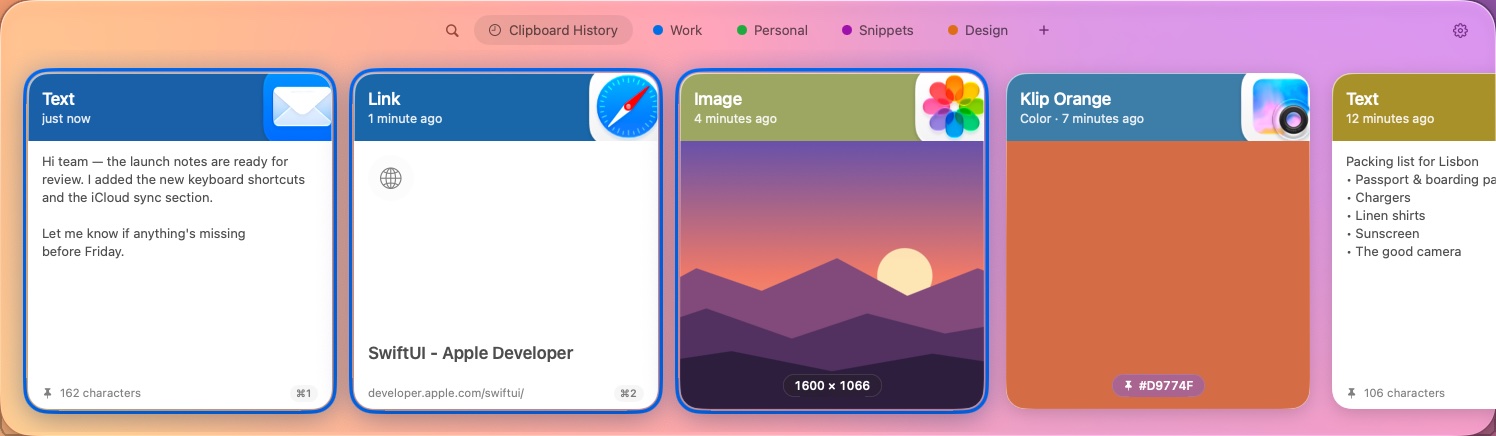
Klip runs quietly in the menu bar and remembers everything you copy: text, links, images, files and colors. To see your history, press ⇧⌘V in any app, or click the clipboard icon in the menu bar and choose Open Klip.
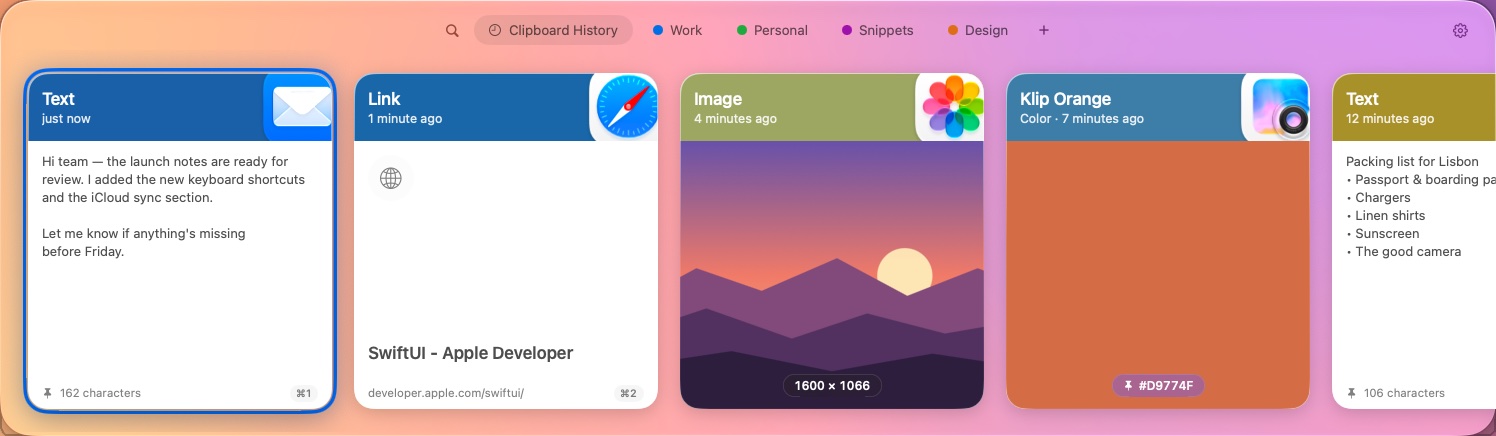
Each card shows:
- A colored header with the clip type (or a name you gave it), how long ago you copied it, and the icon of the app it came from.
- The content: the text itself, a picture, a link with its page title, a file's thumbnail, or a color swatch.
- A footer with details such as the number of characters or the image size, and its quick-paste shortcut (⌘1 to ⌘9).
Press Esc or click anywhere outside the panel to close it.
Paste a clip
- Open Klip in the app you want to paste into.
- Use ← and → to pick a clip, or click it.
- Press ↩ or double-click. Klip closes and pastes the clip where your cursor was.
Paste as plain text. Press ⇧↩ to drop fonts, colors and links from rich text. To always paste plain text, turn on Always paste as plain text in Settings.
Quick-paste. The first nine clips have numbers. Press ⌘1 to ⌘9 to paste one without moving the selection (add ⇧ for plain text).
Using a clip again moves it back to the front of your history. To just copy a clip without pasting, select it and press ⌘C.
Search and filter
With Klip open, just start typing. Klip searches the text of your clips, their names, link titles, keywords and the apps they came from, and shows only the matches.
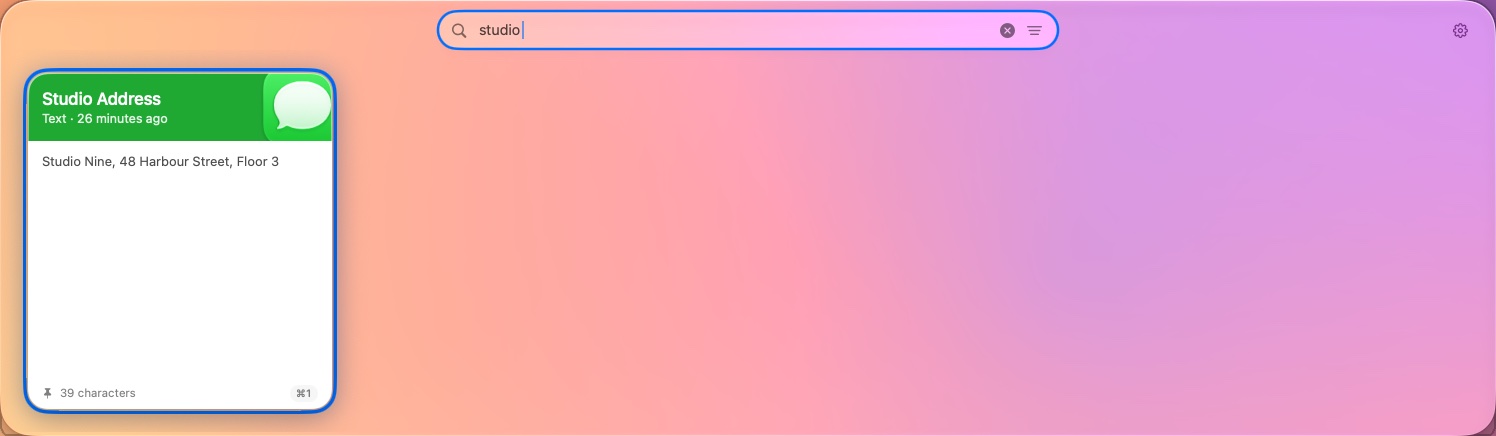
To narrow results by kind, click the filter button at the right of the search bar and choose a clip type (Text, Link, Image, File or Color) or a source app. Each filter appears as a chip in the search bar.
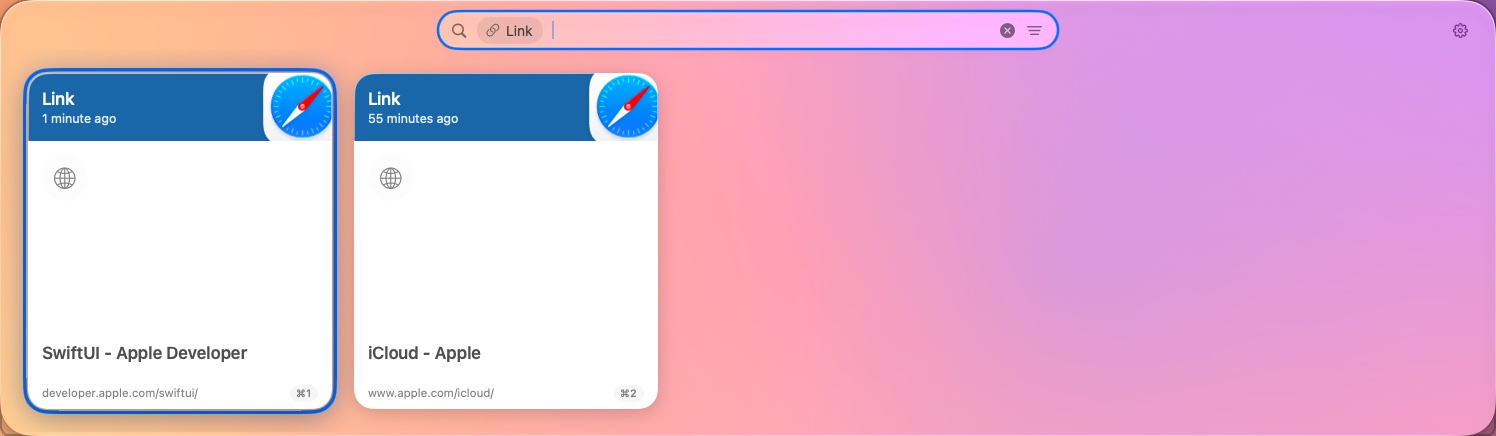
Press ⌫ in an empty search bar to remove the last chip, and Esc to clear the search.
Pinboards
Pinboards keep the clips you use again and again (addresses, replies, code snippets, brand colors) in colored tabs. Pinned clips are never removed from your history, however long you've set it to keep things.
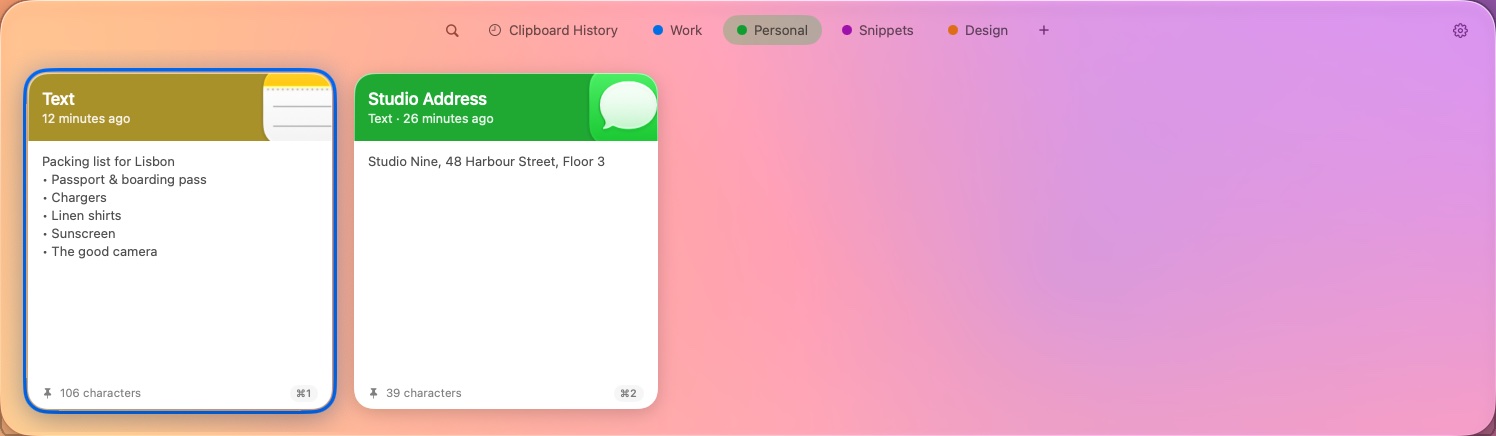
- Create a pinboard: click + next to the tabs.
- Pin a clip: right-click it, choose Pin to, then pick a pinboard (or New Pinboard).
- Switch pinboards: click a tab, or press ⇥ and ⇧⇥. Clipboard History shows everything.
- Rename, recolor or delete a pinboard: right-click its tab.
- Unpin a clip: open its pinboard, select it and press ⌫.
Preview and edit
Select a clip and press Space to see all of it in a large preview above the panel. Press Space again to close it.
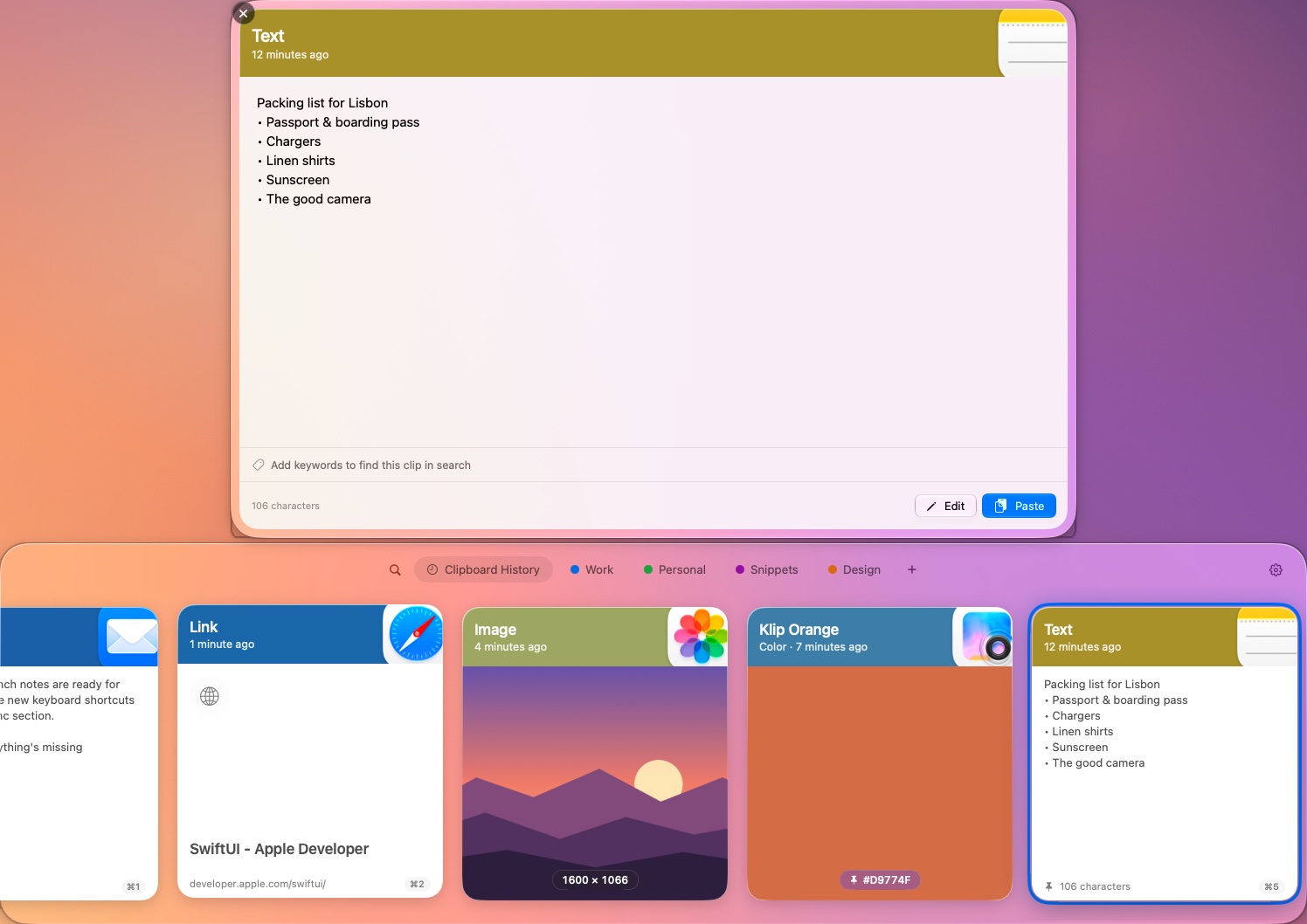
- Edit: for text, links and colors, click Edit to change the clip itself.
- Keywords: add words to find a clip by in search. They're only visible in the preview.
- Rename: press ⌘R to give a clip a name, like "Studio Address", shown in place of its type.
- Links: right-click a link clip and choose Open in Browser. Files can be shown with Reveal in Finder.
Select several clips
⌘-click clips to select more than one, or press ⌘A to select them all. Then press ↩ to paste them together, ⌘C to copy them, or right-click to pin or delete them all at once.
Settings
Open Settings from the menu bar icon, with ⌘, while Klip is open, or by launching Klip again from Spotlight.
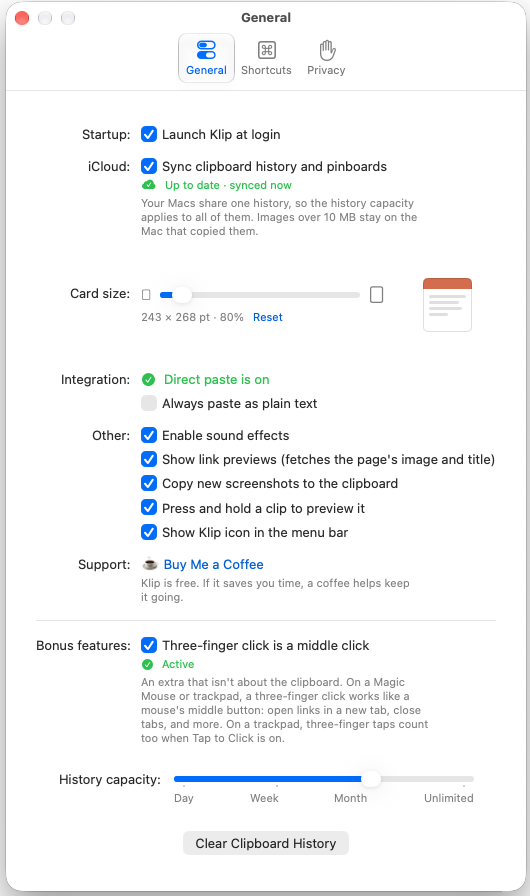
- Launch Klip at login
- Start Klip when you log in, so it never misses a copy.
- iCloud
- Sync your history and pinboards across your Macs, iPhone and iPad.
- Card size
- Make the cards bigger or smaller. The preview shows the new size.
- Integration
- Shows whether direct paste is on, and can make Klip always paste plain text.
- Other
- Sound effects, link previews, copying new screenshots to the clipboard, press and hold a clip to preview it, and the menu bar icon.
- Bonus features
- Turns a three-finger click on a Magic Mouse or trackpad into a middle click, to open links in new tabs or close tabs.
- History capacity
- Keep clips for a day, a week, a month or forever. Pinned clips are always kept.
- Clear Clipboard History
- Deletes your history. Pinned clips stay.
- Import from Paste
- Brings your history and pinboards over from the Paste app. Find it in the menu bar icon's menu.
Privacy
The Privacy tab controls what Klip saves and who can see it.
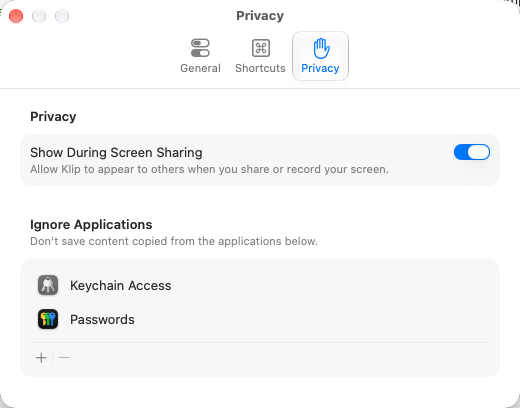
- Show During Screen Sharing
- On by default. Turn it off and Klip's panel, previews and pop-up messages stay on your screen only, hidden from people watching a screen share and from screen recordings.
- Ignore Applications
- Klip doesn't save anything you copy from these apps. Keychain Access and Passwords are on the list from the start, and ignoring Passwords also covers its menu bar popup. Click + to add an app, or select one and click − to remove it.
Keyboard shortcuts
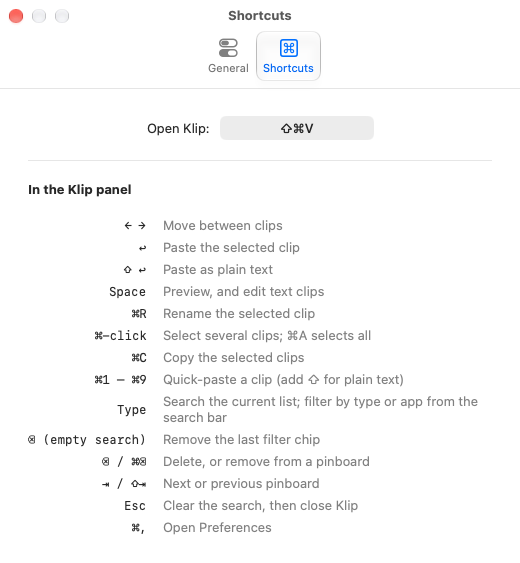
Everything in Klip works from the keyboard. To change the shortcut that opens Klip, click it in Settings → Shortcuts and press a new key combination.
iCloud sync
Turn on Sync clipboard history and pinboards in Settings, on every Mac signed in to the same Apple Account. Your history, pinboards, names and keywords stay the same everywhere, and anything you delete is deleted everywhere.
- Clips sync through your private iCloud database. Nobody else, including the developer, can see them.
- Images over 10 MB stay on the Mac that copied them.
- Your Macs share one history, so the history capacity setting applies to all of them.
- Klip for iPhone and iPad shows the same history. See the iPhone & iPad help.
Permissions
The first time you open Klip, macOS asks whether Klip may “control this Mac and access your data.” That’s macOS’s standard wording for the access every clipboard manager needs to paste for you, and it sounds bigger than what Klip does with it:
- What Klip uses it for: pressing ⌘V for you, so the clip you pick goes straight into the app you were using. And, only if you turn it on, the three-finger middle click.
- What Klip never does: read your screen, record your keystrokes, or send anything anywhere. Your clips stay on your Mac and in your own iCloud.
- If you’d rather not: Klip still works. Picking a clip copies it, and you press ⌘V yourself. You can allow it later at any time.
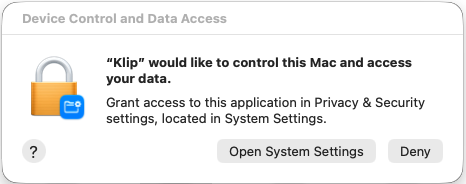
- Click Open System Settings. If you closed the prompt, open Klip Settings → General and click Open Accessibility Settings…
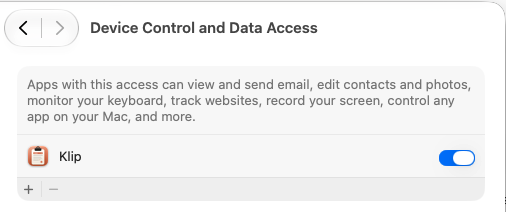
- In Privacy & Security → Device Control and Data Access, turn on Klip.
- Back in Klip Settings, Direct paste is on appears in green.
See the Privacy Policy for details.
Get started
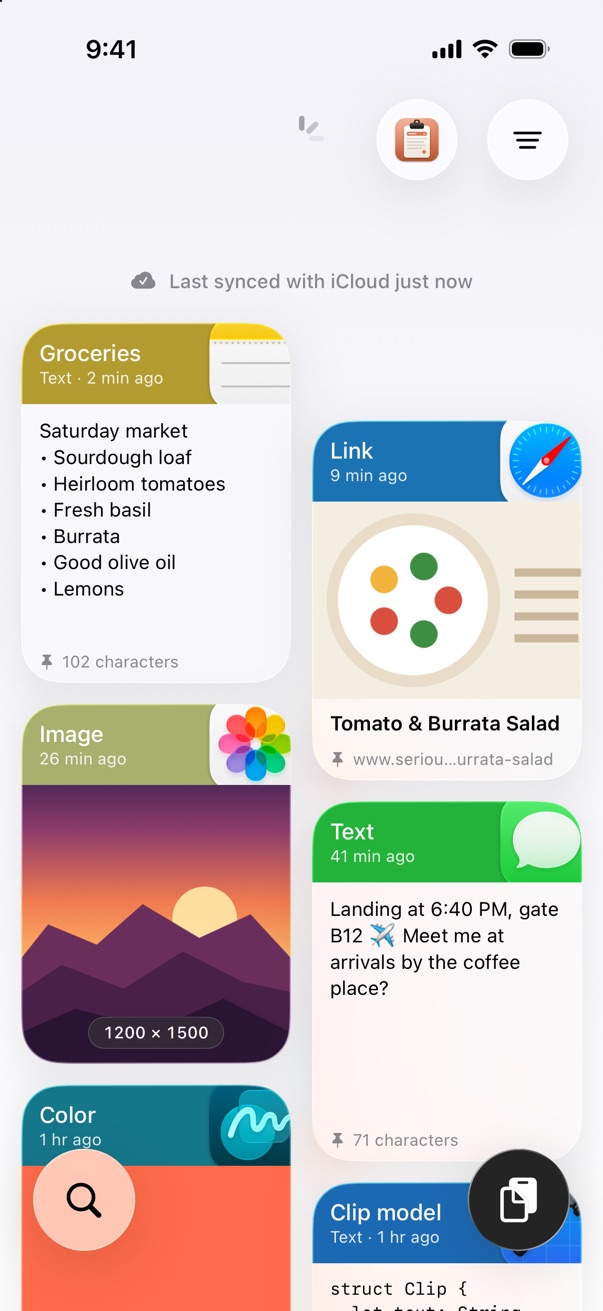
Klip for iPhone and iPad keeps a history of the clips you save: text, links, images, files and colors. It works on its own, and with Klip for Mac everything you copy on your Mac shows up here too, through your own iCloud.
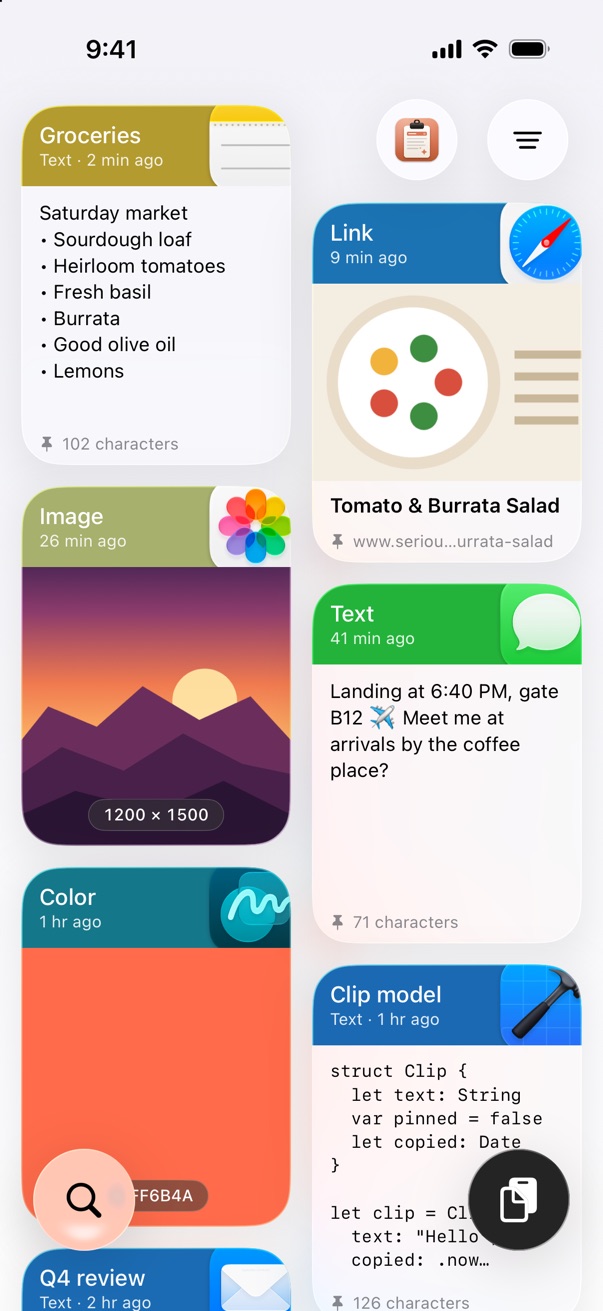
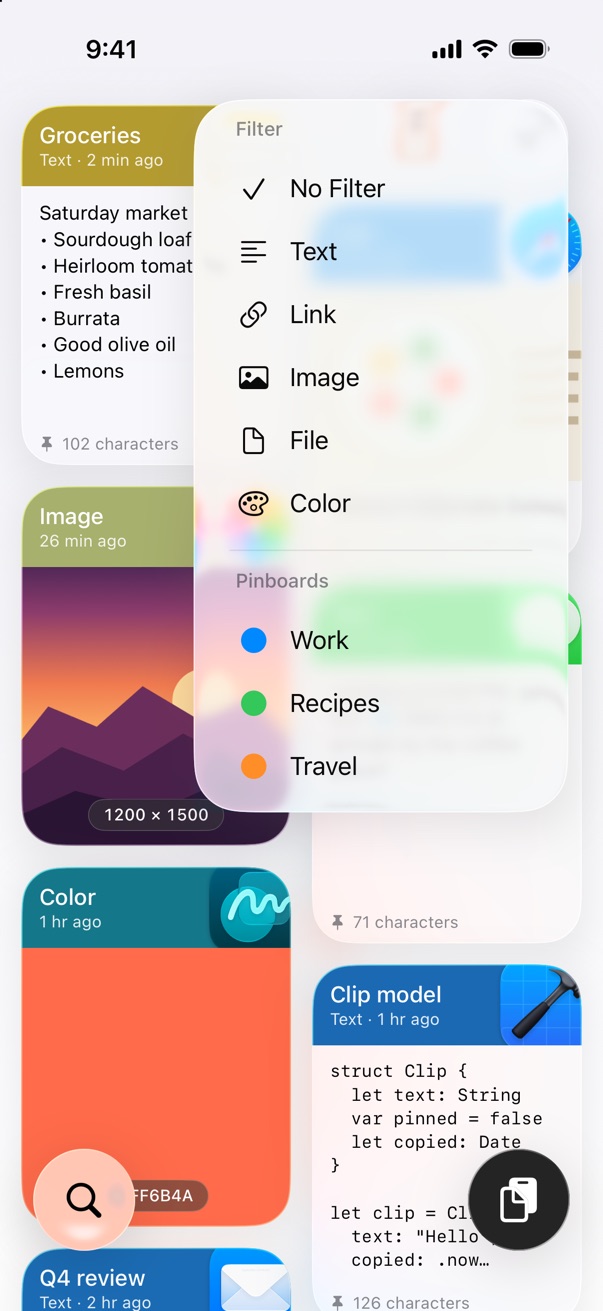
Your clips are shown as cards, newest first. The buttons float over them: the Klip button and the filter at the top right, search at the bottom left and paste at the bottom right.
Klip works the same way on iPad, with more cards on the larger screen. Everything in this guide applies to both.
Copy a clip
Tap a card to copy it, then paste it in any app. Copying a clip moves it back to the front of your history.
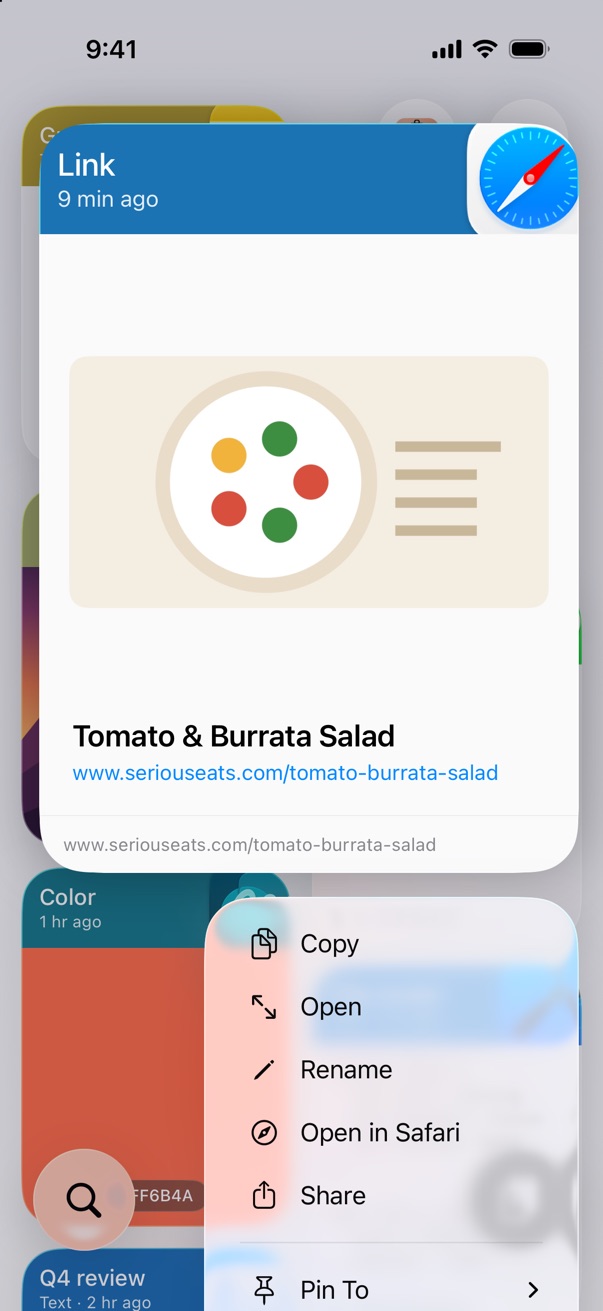
Touch and hold a card to see it larger, with a menu of everything you can do with it:
- Copy, or Copy as Plain Text for rich text.
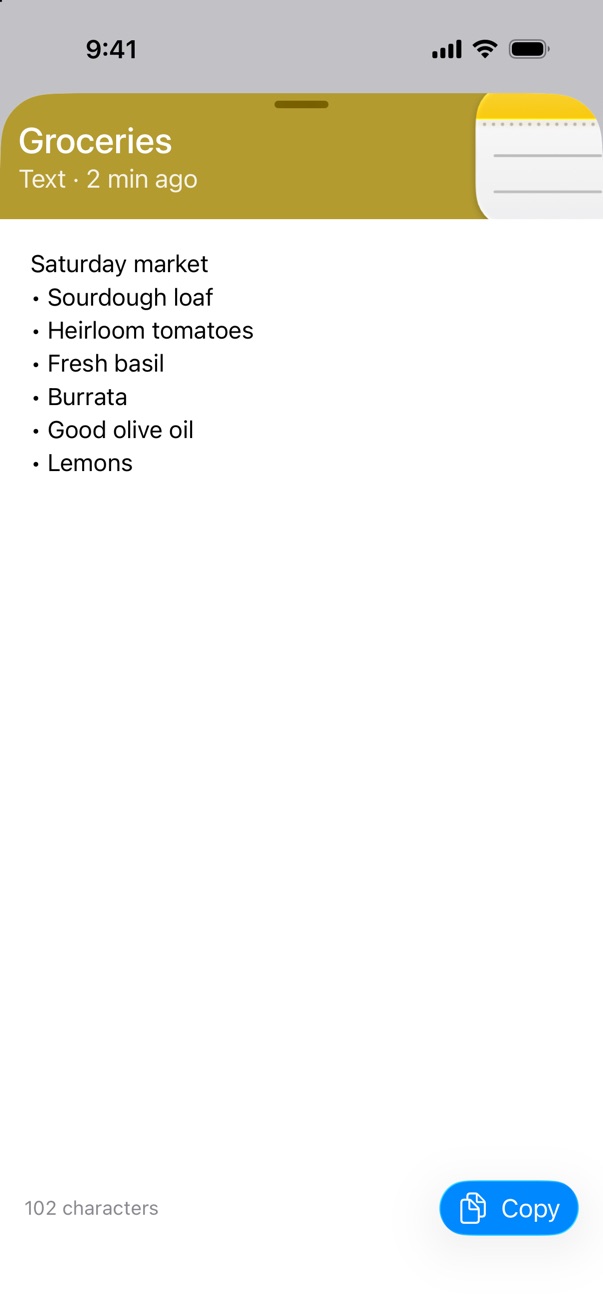
- Open to read the whole clip and select part of it.
- Rename to give it a name, like "Studio Address", shown in place of its type.
- Open in Safari for links, and Share.
- Pin To or Unpin, and Delete.
Save from the clipboard
Copy something in any app, open Klip and tap the dark paste button at the bottom right. Klip saves what's on the clipboard (text, a link, a color or an image) as a new clip, and it shows up on your other devices too.
Why a button? Klip reads your clipboard only when you tap it. It never looks at what you copy in the background.
Images larger than 10 MB are saved on this device but don't sync.
Search and filter
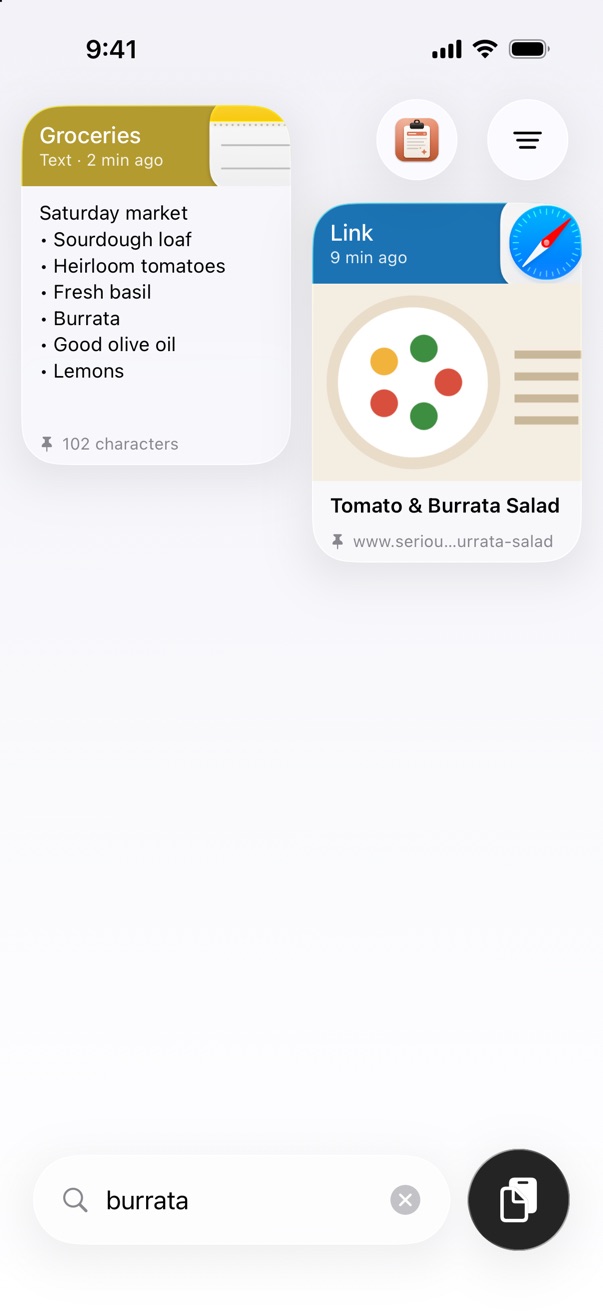
Tap the magnifying glass at the bottom left and type. Klip searches the text of your clips, their names, link titles, keywords and the apps they came from.
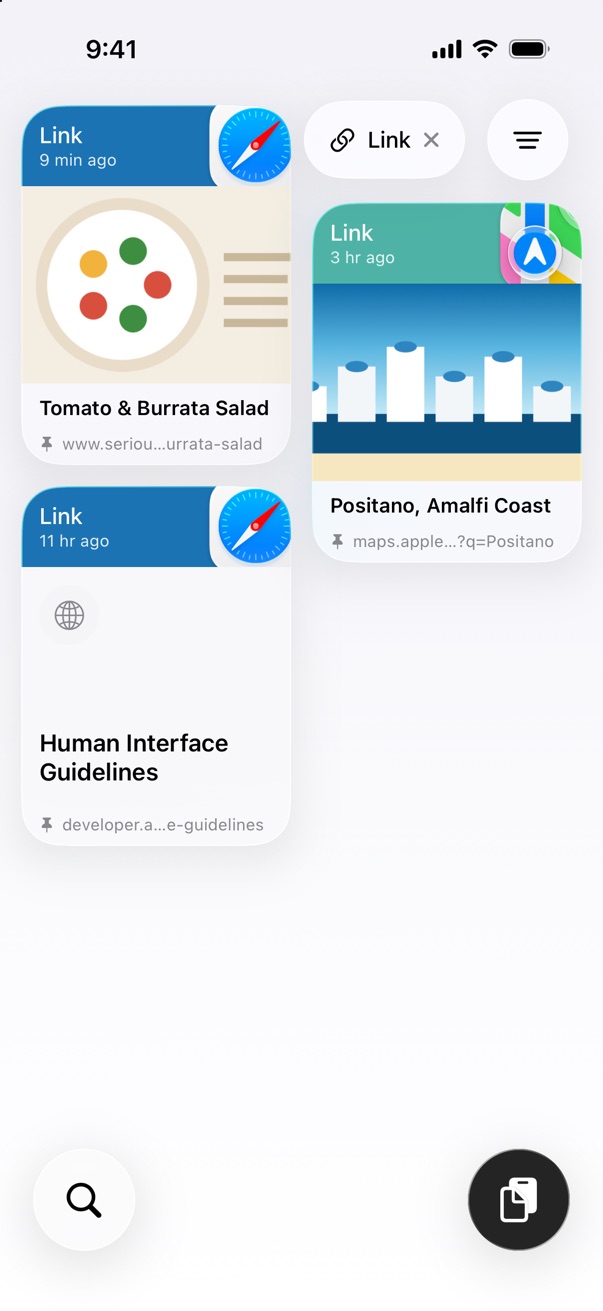
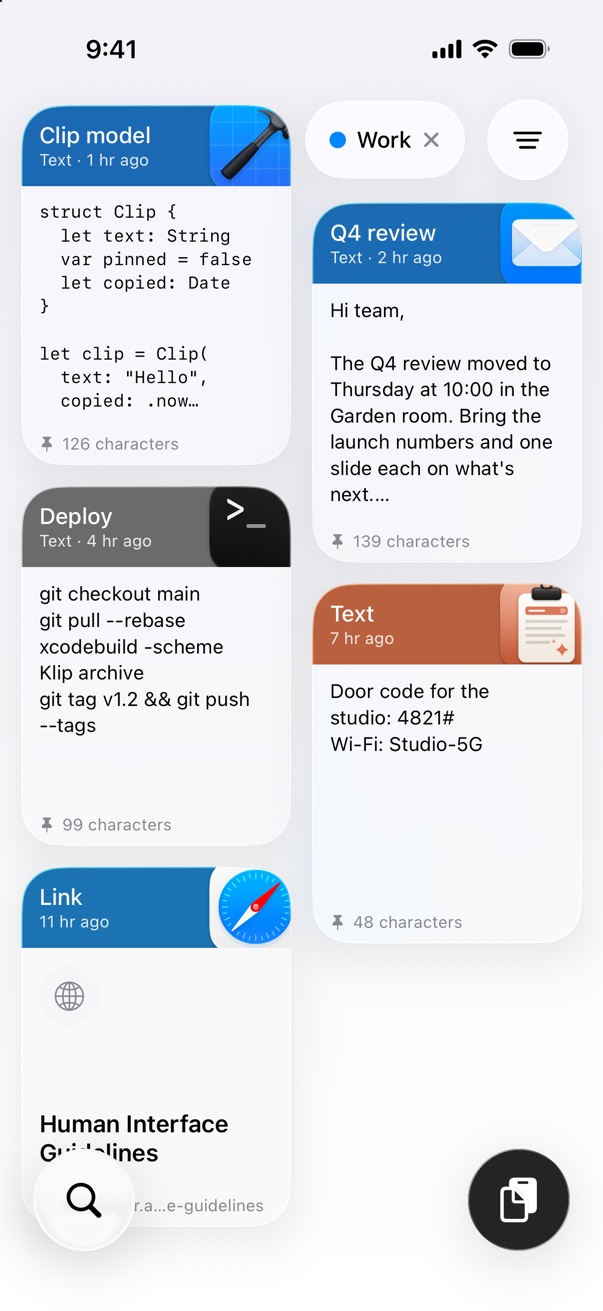
Tap the filter button at the top right to show one clip type (Text, Link, Image, File or Color) or one pinboard. You can use a type and a pinboard together, for example only the links on your Work pinboard. Each filter shows as a chip at the top; tap it to clear it.
Pinboards
Pinboards keep the clips you use often. Pinned clips are never removed from your history, and your Mac's pinboards are all here.
- Pin a clip: touch and hold it and choose Pin To.
- Show a pinboard: choose it from the filter button.
- Create and manage pinboards: open Settings → Pinboards. Tap + to add one, tap a pinboard to rename it, or tap its dot to change its color. Tap Edit, or touch and hold and drag, to reorder.
- Share a pinboard: in Settings → Pinboards, swipe left on it and tap Share. Klip sends it as a file that someone with Klip can open to import it.
- Import a shared pinboard: tap the
.klipfile in Messages, Mail or Files and open it in Klip. Klip asks to import it; tap Import and the pinboard opens. If you already have a pinboard with the same name, its clips are added to it. - Delete a pinboard: swipe left on it and tap Delete. Its clips stay in your history.
Klip keyboard
The Klip keyboard puts your clips in any app, so you can paste them without opening Klip. It's optional: iOS only lets you add a keyboard yourself, so it takes a minute to set up the first time.
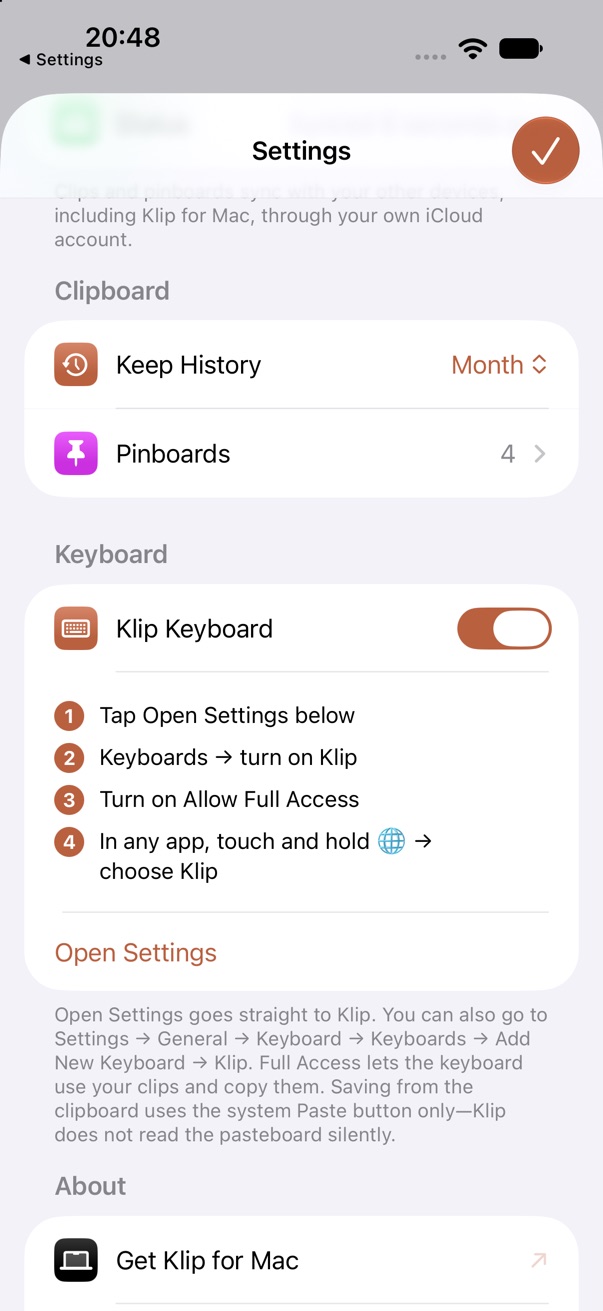
1. Check it's on in Klip
In Klip, tap the Klip button at the top right to open Settings. Under Keyboard, Klip Keyboard is on unless you turned it off. While it's on, Settings lists the steps below and an Open Settings button.
2. Add Klip in iOS Settings
Tap Open Settings. It goes straight to Klip's page in the iOS Settings app.
- Tap Keyboards.
- Turn on Klip.
- Turn on Allow Full Access, then tap Allow when iOS asks.
You can also get there yourself: open Settings, go to General → Keyboard → Keyboards → Add New Keyboard and choose Klip. Then tap Klip in your list of keyboards and turn on Allow Full Access.
About Full Access
The keyboard needs Full Access to read the clips you've saved in Klip and to copy clips for you to paste. iOS shows the same warning for every keyboard that asks for it, because a keyboard with letter keys could send what you type. The Klip keyboard has no letter keys, doesn't record anything you type and never goes online. It reads your clipboard only when you tap Paste. See the Privacy Policy for details.
3. Switch to Klip
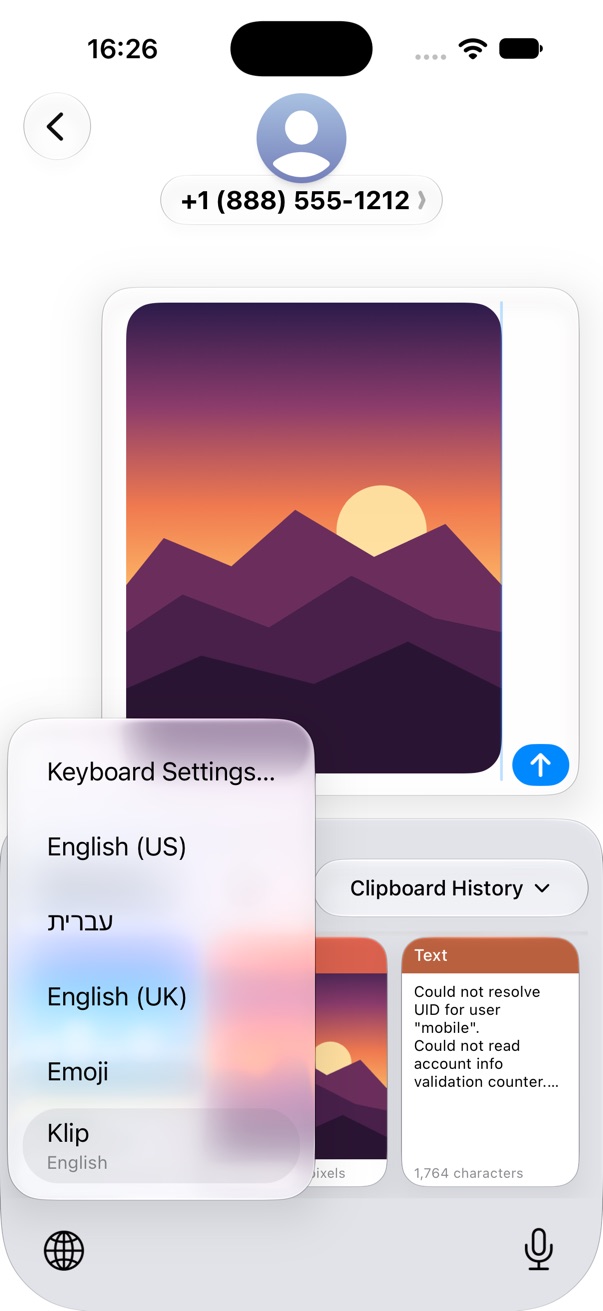
In any app, tap a text field to bring up the keyboard. Touch and hold the globe key 🌐 and choose Klip. Or tap the globe key until Klip appears. On iPhones with Face ID, the globe key is below the keyboard, at the bottom left of the screen. iOS remembers your choice, so Klip comes back the next time you open that keyboard.
Use the keyboard
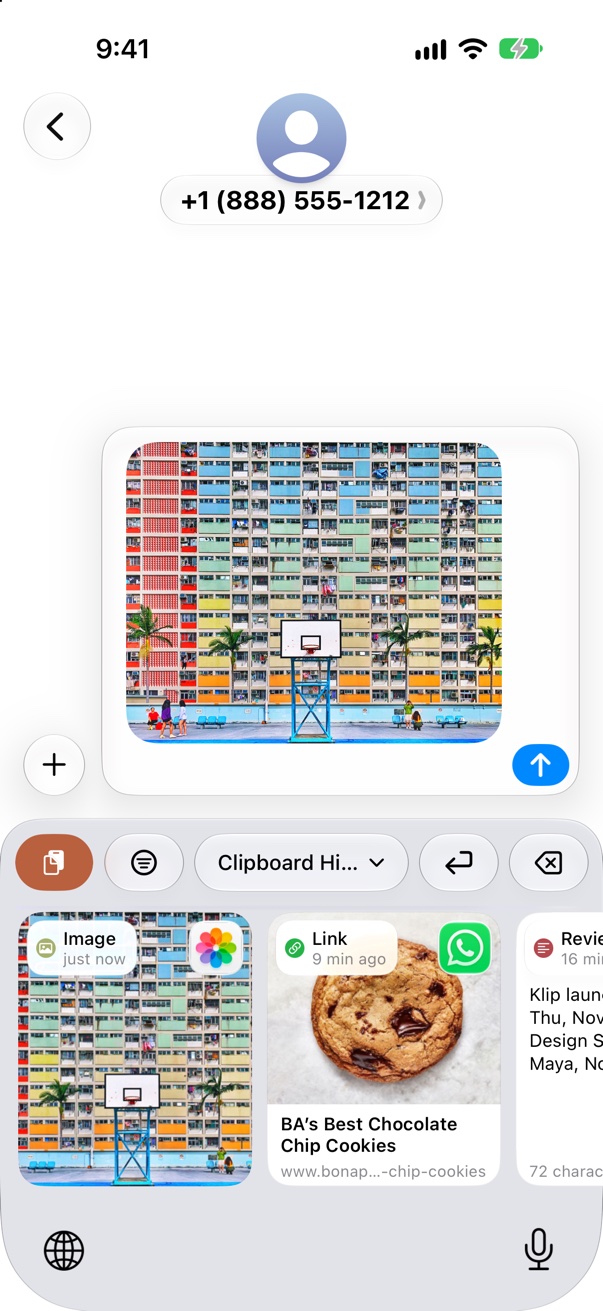
- Type a clip: tap a card and Klip types it into the field you're in. Images can't be typed, so tapping one copies it for you to paste.
- Copy instead: touch and hold a card and choose Copy.
- Save from the clipboard: tap Paste. If a pinboard is shown, the clip is pinned to it. Very large photos need to be saved in the Klip app instead.
- Pick what you see: the menu shows your whole Clipboard History or one pinboard.
- Filter: tap the filter button to show only one type of clip (Text, Link, Image and so on) or only clips from one app. Choose Clear Filters to see everything again.
- Delete text: tap the delete key ⌫ to delete the character before the cursor, or hold it to keep deleting. You can fix a mistake without switching keyboards.
- Open Klip: tap the Klip button. Use the globe key to switch back to your usual keyboard.
If the keyboard shows a message
- Klip Keyboard is off
- Turn on Klip Keyboard in Klip's Settings, then switch back to the keyboard.
- Allow Full Access
- Full Access is off. Go to Settings → General → Keyboard → Keyboards → Klip and turn on Allow Full Access.
- Couldn't load clips
- Open the Klip app once, then switch back to the keyboard. If it keeps happening, delete and reinstall Klip.
You're never stuck on Klip: use the globe key below the keyboard, or on iPhones without Face ID, the Next Keyboard button in the message.
Remove the keyboard
Go to Settings → General → Keyboard → Keyboards, tap Edit and remove Klip. Your clips stay in the Klip app.
iPhone Duo
Folded, Klip on iPhone Duo works like it does on any iPhone, with its buttons in a column beside your clips so the cards keep the screen. Open it, and your clips sit on the left with the full clip on the right: tap a card to copy it and see all of it.
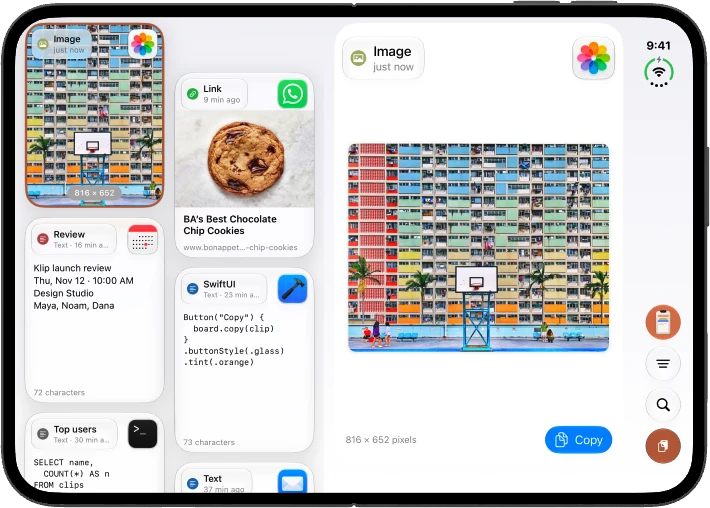
The Klip keyboard fits both displays and shows wider cards when iPhone Duo is open.
Settings
Tap the Klip button at the top right. It steps aside while a filter is on; clear the filter to see it again.
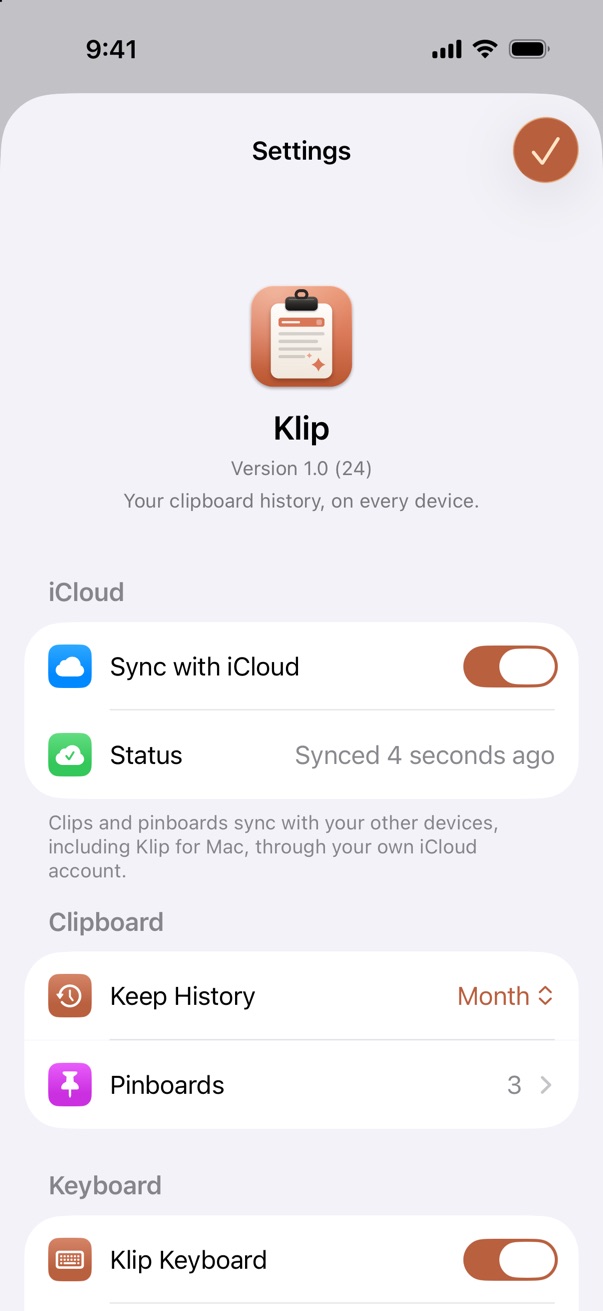
- Sync with iCloud
- Sync your clips and pinboards with your other devices. Status shows whether sync is working. Close and reopen Klip after turning it on or off.
- Keep History
- Keep clips for a day, a week, a month, or with no limit. Pinned clips are always kept. Choosing a shorter time asks first, then deletes unpinned clips older than that, on all your devices if sync is on.
- Pinboards
- Create, rename, recolor, reorder, share and delete pinboards.
- Klip Keyboard
- Turn the keyboard on, with the steps to add it in iOS Settings.
- Clear History
- Removes every clip that isn't pinned. With sync on, they're removed from all your devices. Pinboards are kept.
- About
- Get Klip for Mac, rate Klip, and open this Help, Support or the Privacy Policy.
iCloud sync
Sync is on by default. Sign in to the same Apple Account on your Mac, iPhone and iPad, and turn on sync in Klip for Mac too. Your clips, pinboards, names and keywords then stay the same everywhere.
- Pull down on your clips to check for changes and see when Klip last synced.
- Clips sync through your private iCloud database. Nobody else, including the developer, can see them.
- With sync off, your history stays only on this device.
See the Privacy Policy for details. Clips not showing up? See Support for common sync problems and fixes.
Still stuck?
Common problems and fixes are on the Support page.